
Last updated
Grace Cowan

What if we told you there was a way to connect with potential customers instantly, right on the most used app at the click of a button? Facebook ads that click to WhatsApp make it easy. In this blog, we show you how to get started with WhatsApp and launch ads that convert!
What are click-to-WhatsApp ads?
Ads that click to WhatsApp are promotions that direct potential customers to WhatsApp so they can start relevant conversations with your brand. These ads usually appear on feeds and stories on Instagram and Facebook.
These Facebook and Instagram ad formats allow you to reach a wider audience and drive them directly to a chat with you on WhatsApp, where you can close the deal.
Benefits of click-to-WhatsApp ads
Boost customer engagement: With features like chatbots, live chat and WhatsApp auto-replies, your customer’s messages won’t go unanswered.
Have real-time conversations with customers: Turn clicks into conversations with live chat, allowing your team to service customers immediately. Customers don’t have to wait days, unlike when they fill in a form on your contact page.
Personalised communication: Qualify customers using WhatsApp chatbots and have one-on-one, targeted conversations that build trust and rapport.
Drive sales & conversions: Use Cue to set up custom flows that allow customers to make a purchase right after seeing your ad.
Measure results: Facebook Business Manager allows you to track ad performance and analyse data to optimise your campaigns for better results.
How to set up Facebook ads that click to WhatsApp
It’s important to note that WhatsApp advertising can’t be done using a regular WhatsApp number. You either need a WhatsApp Business account from the WhatsApp Business App or the WhatsApp Business API.
After setting up your account, you’ll need to connect it with your Facebook page.
Here’s how to set up click-to-WhatsApp ads:
Go to Facebook Ads Manager and click on "create.”
Select “messages” as the campaign goal and add a name to your campaign, ad group, and ad set. Now click on “continue”.
After choosing the objective, you can set a daily or lifetime budget for your ad campaign. Learn more about bid strategies.
Now choose “WhatsApp” as the ad group to run click-to WhatsApp ads via Facebook. Make sure to choose your Facebook page & WhatsApp Business number.
Set up and schedule your WhatsApp ad targeting based on the age group, gender, location, interests, and audience.
After setting up targeting, click on “next”.
Now choose the Facebook & Instagram pages that you want to run WhatsApp ads on.
Choose the type of ad creative for the ads (images, videos and carousels).
Once you’ve uploaded the creatives, it’s time to review the placements and the ad. In this section, you can:
Edit ad placements on Facebook & Instagram.
Create and edit the primary text for your ads. You can add up to 5 primary headings.
Edit your main headline. This could be “Let’s chat.”
Create and edit a compelling description of the ad.
Click “message template” and customise the template message according to your targeted audience.
Click on ‘Save and Finish’.
Your ad will be reviewed by Facebook. Once it gets approved, it’ll go live. To learn more about Facebook ads that click to WhatsApp, visit the Meta help guide.
5 click-to-WhatsApp ad examples that convert
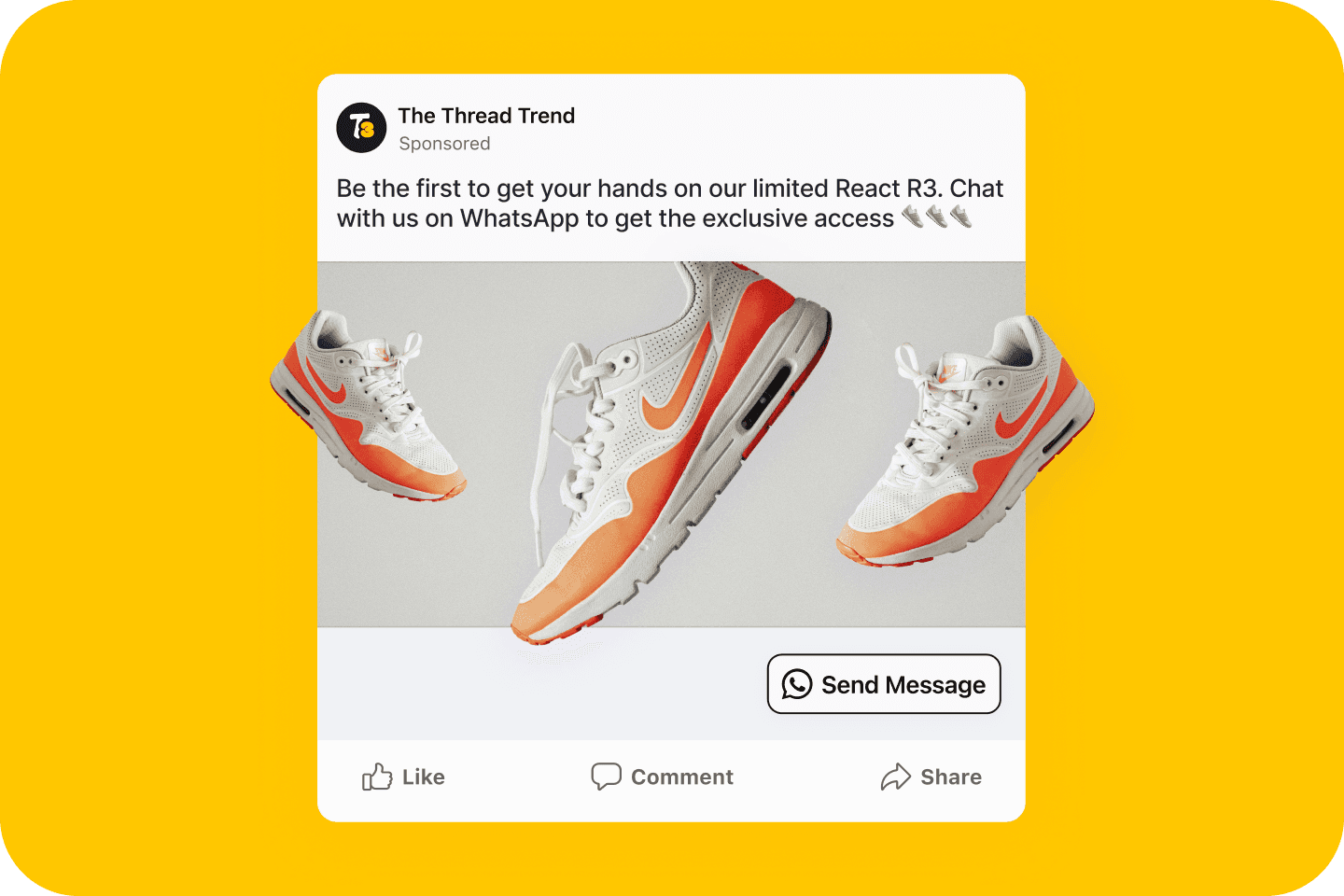
E-commerce product launch ad copy
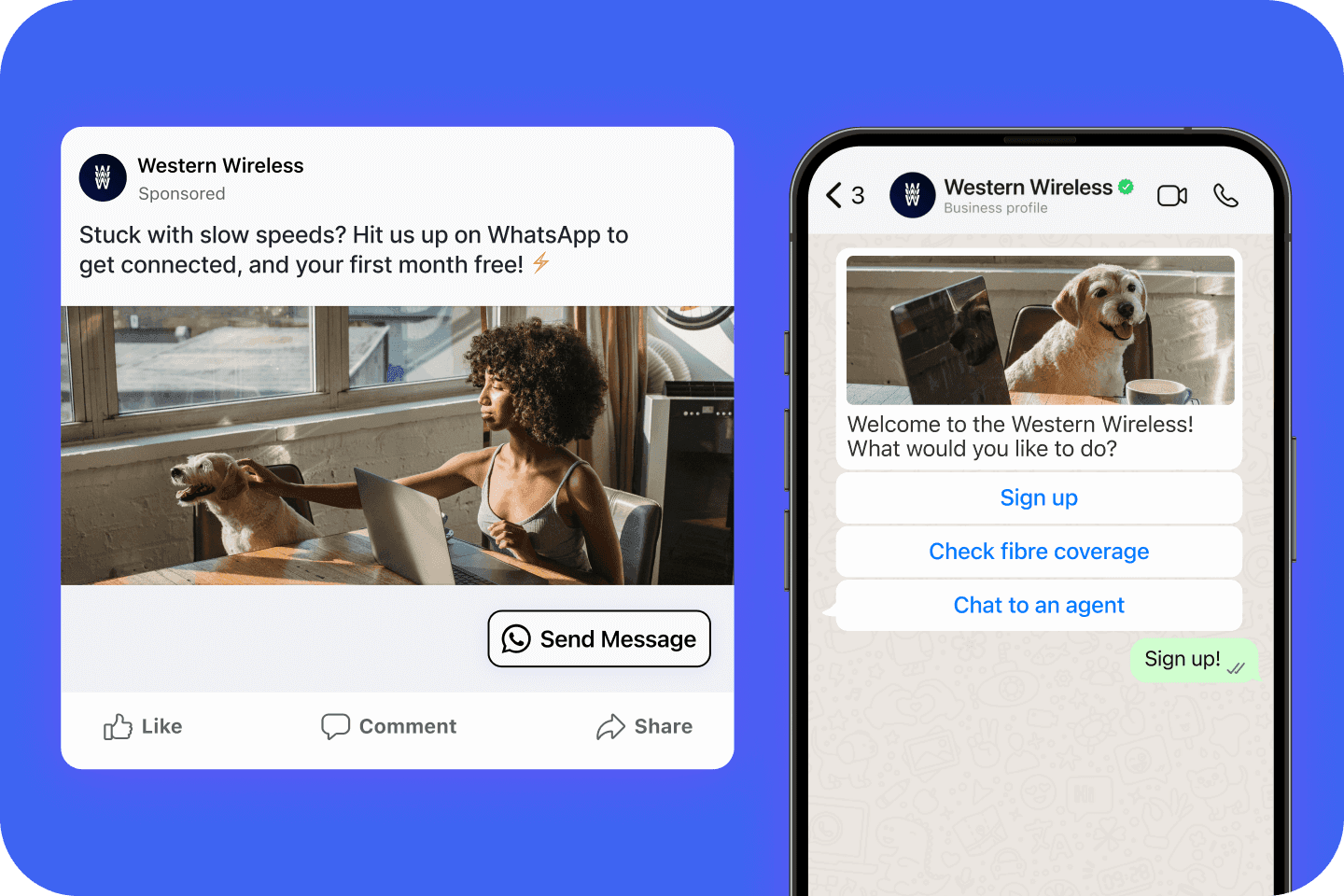
ISP lead generation
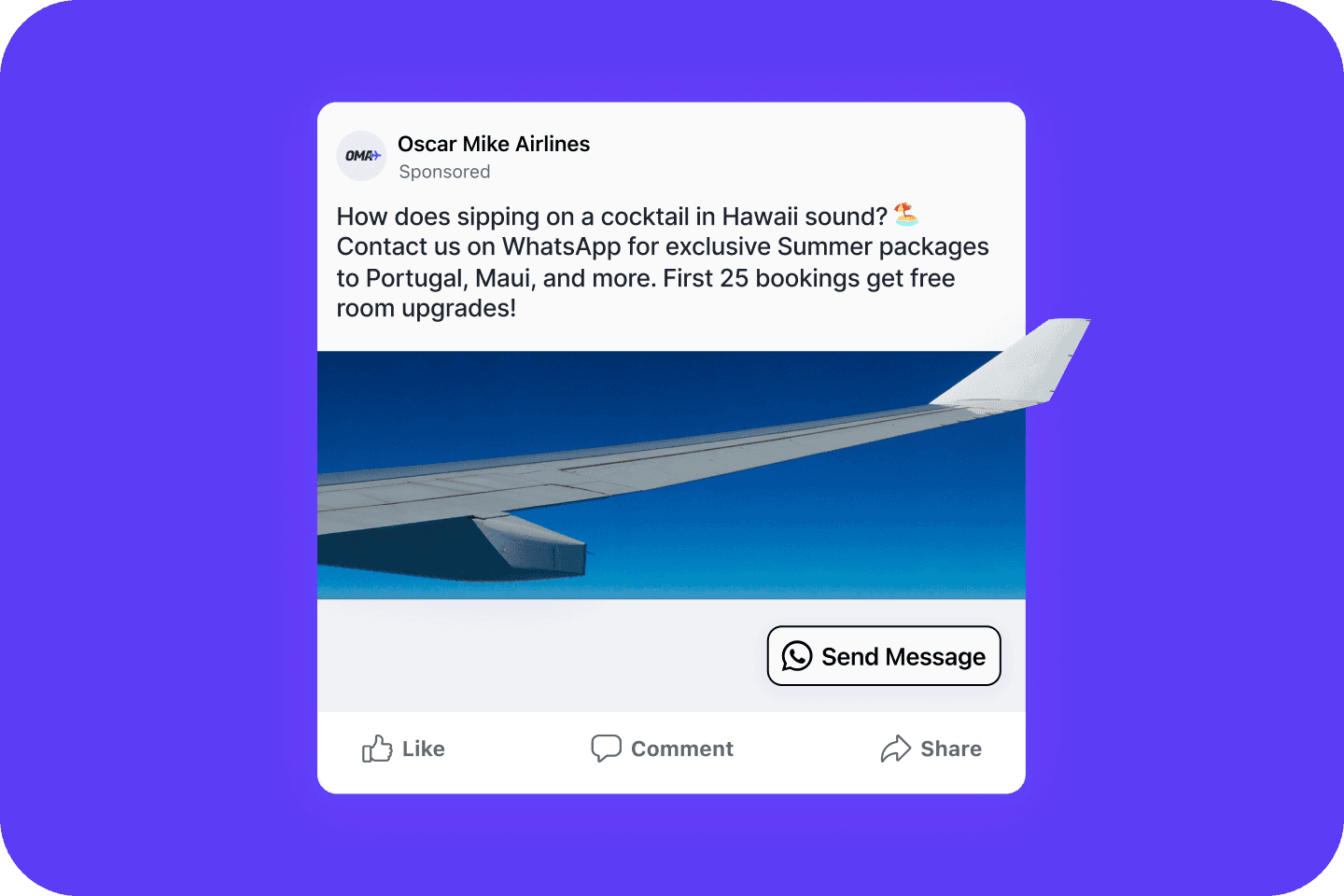
Travel deal promotion ad copy
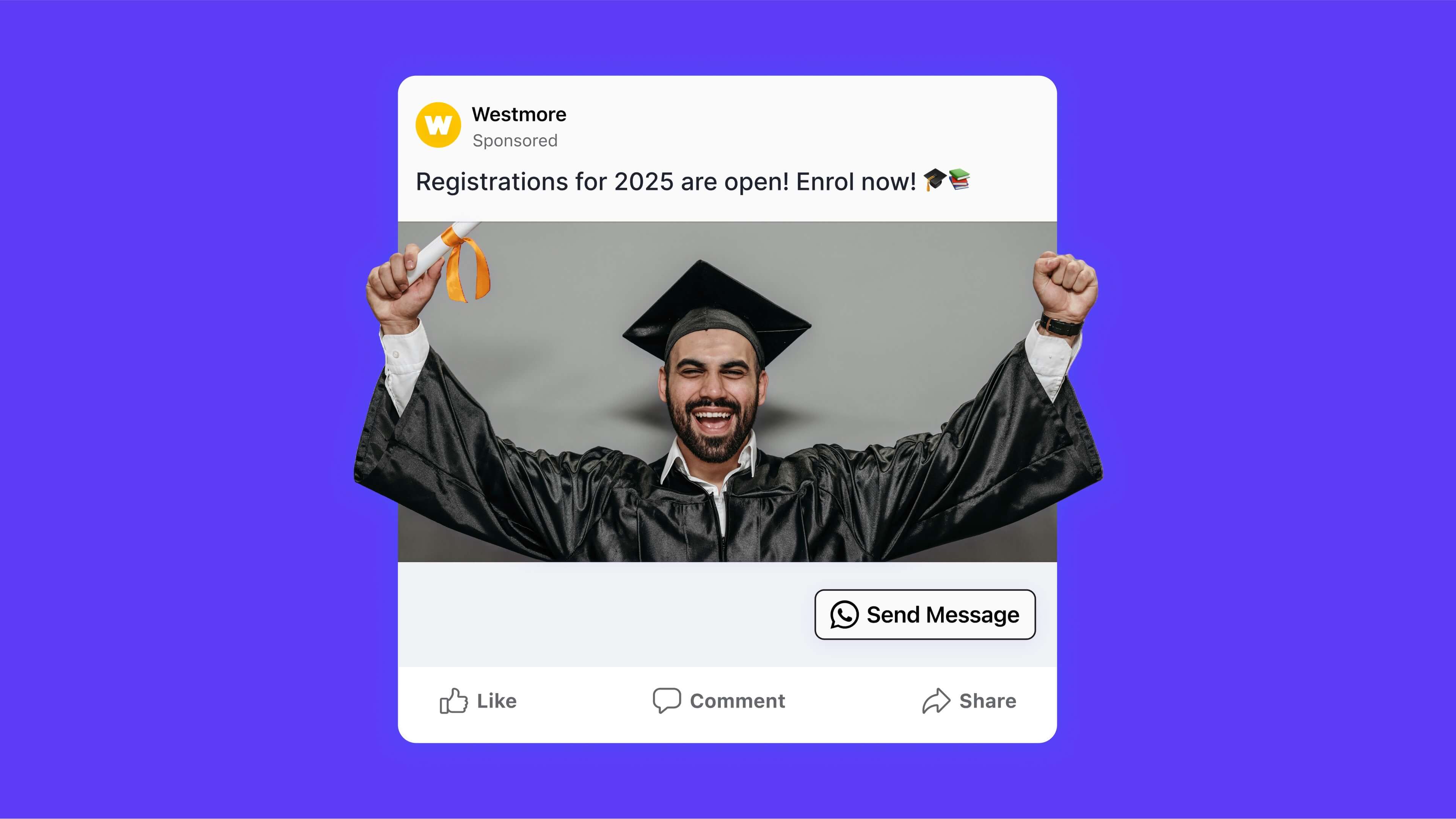
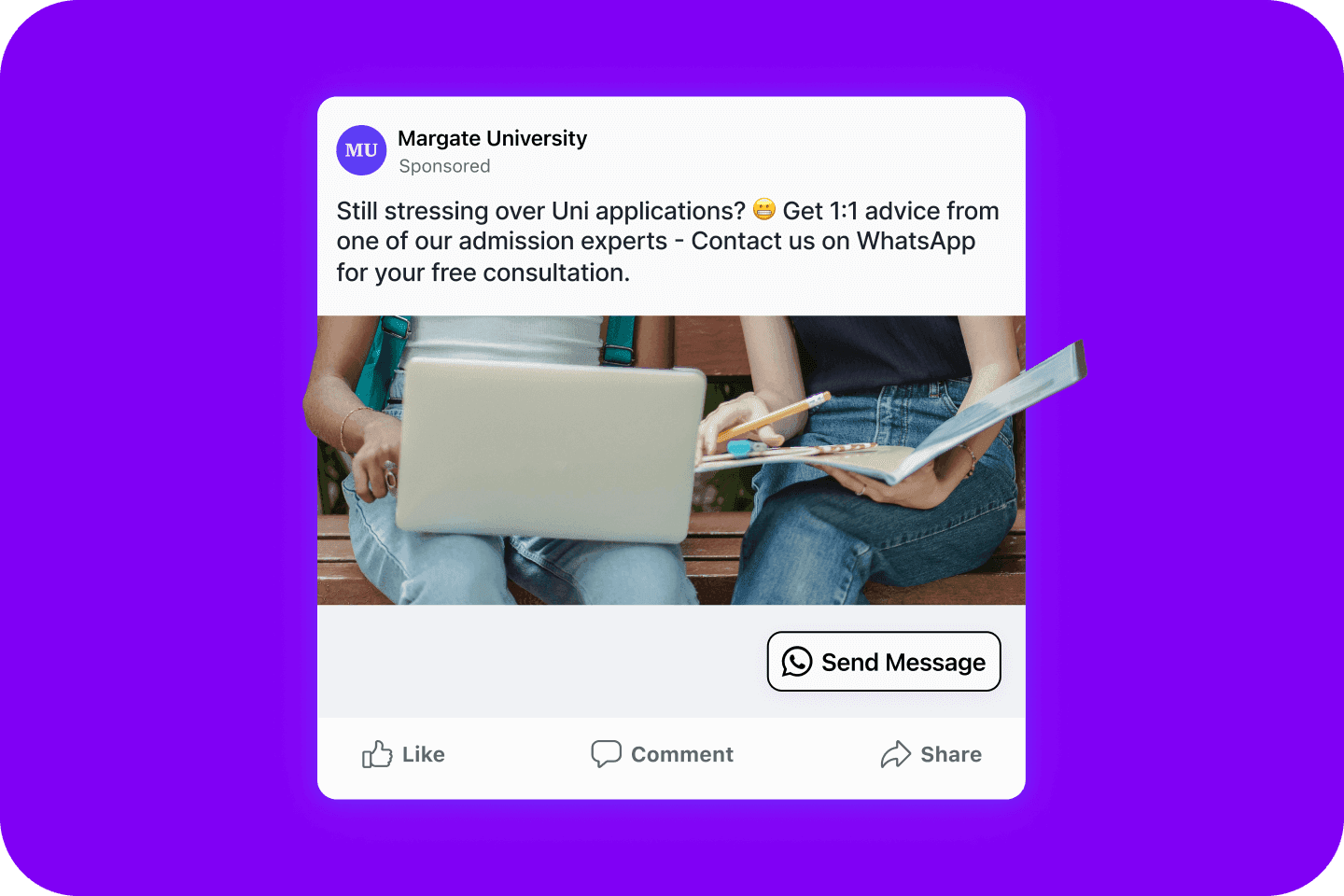
Higher education admissions ad copy
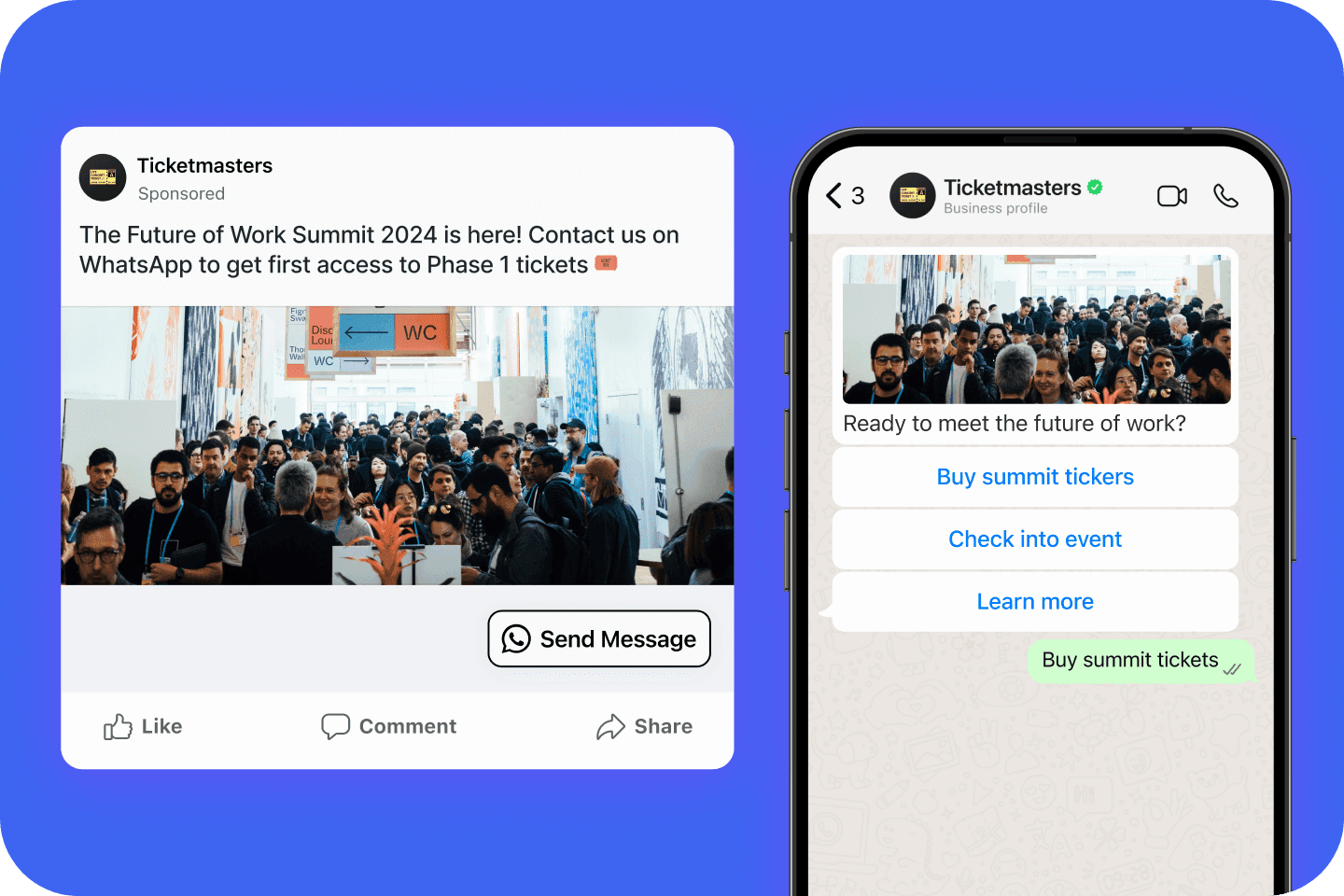
Event registration ad copy
About the author

Grace Cowan
Head of Marketing
Grace is Head of Marketing at Cue, an omnichannel customer service platform. She works across B2B SaaS growth, customer experience and AI-led service, sharing practical insights on WhatsApp Business, customer communication and the strategies businesses can use to improve service and drive revenue.
Further reading
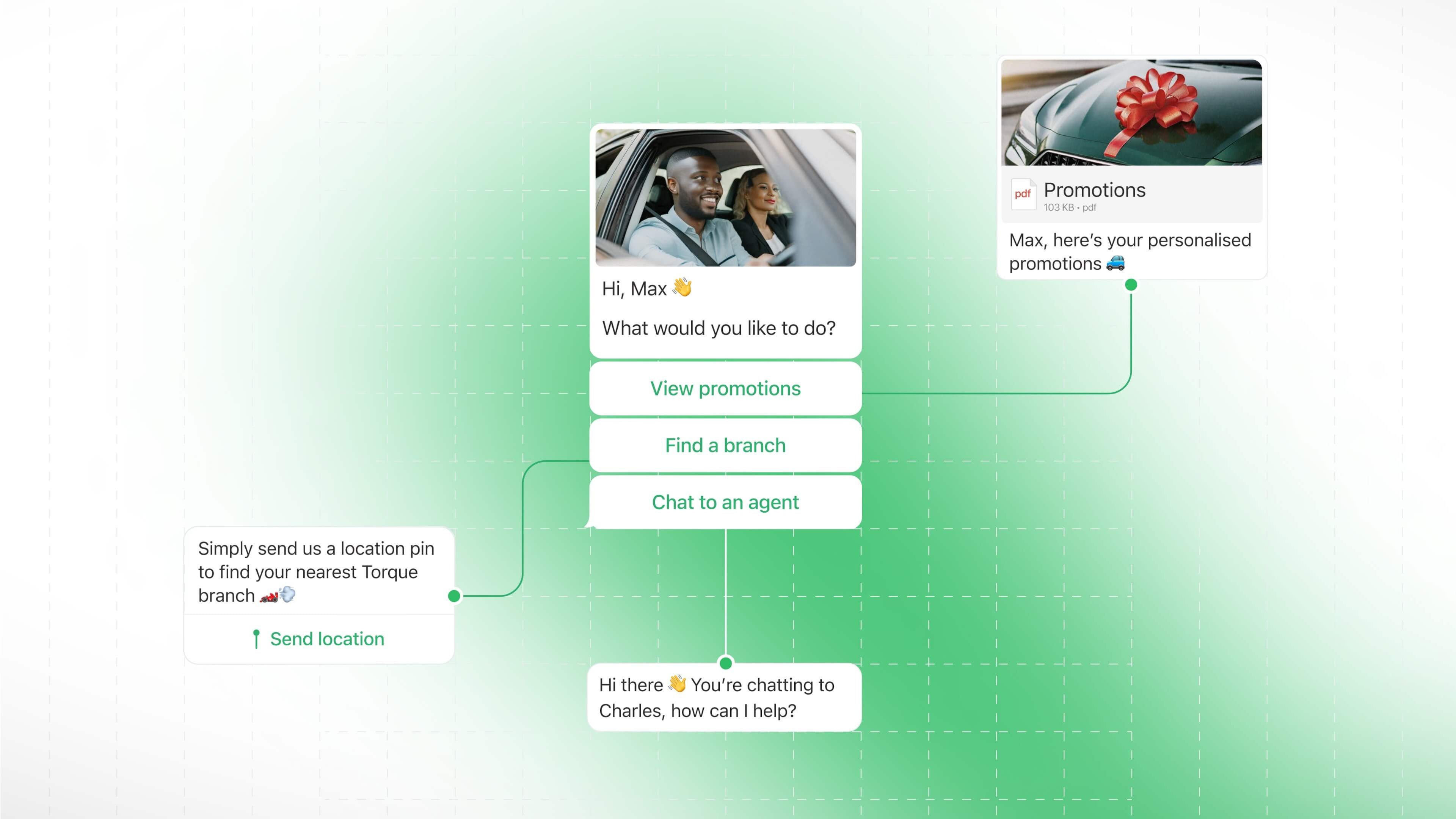
WhatsApp buttons and menus: every interactive message type, explained
Reply buttons, CTA buttons, list menus and template buttons: what each does, the limits Meta publishes, and how to build a working menu.
Read the guide
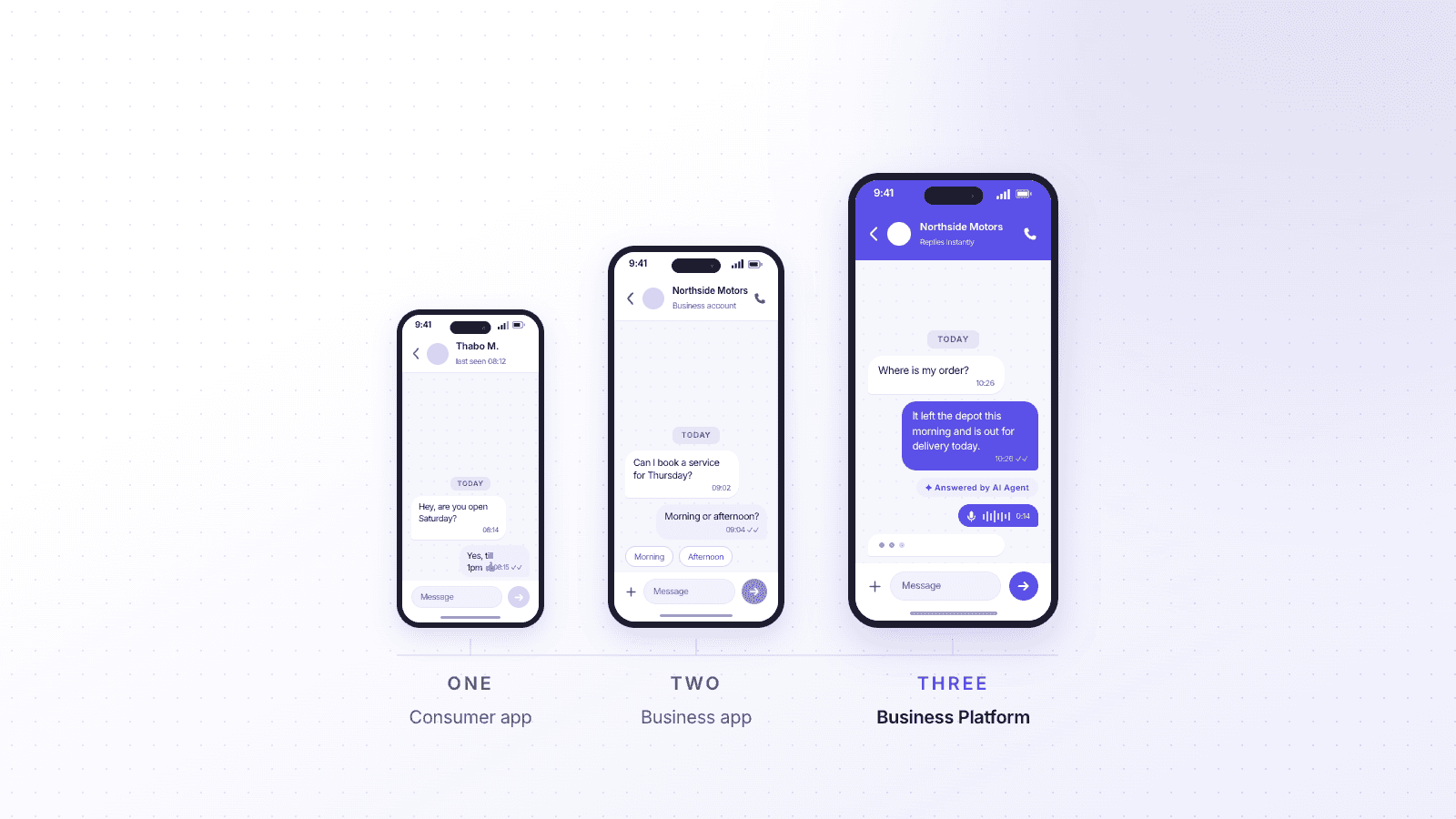
What is a WhatsApp Business account?
The three versions of WhatsApp explained, what the free Business app can and cannot do, and the signals that you have outgrown it.
Read the guide

Is WhatsApp Business free?
The free app really is free. Here is where the costs start, what Meta charges per message, and why the platform fee is the real decision.
Read the guide
